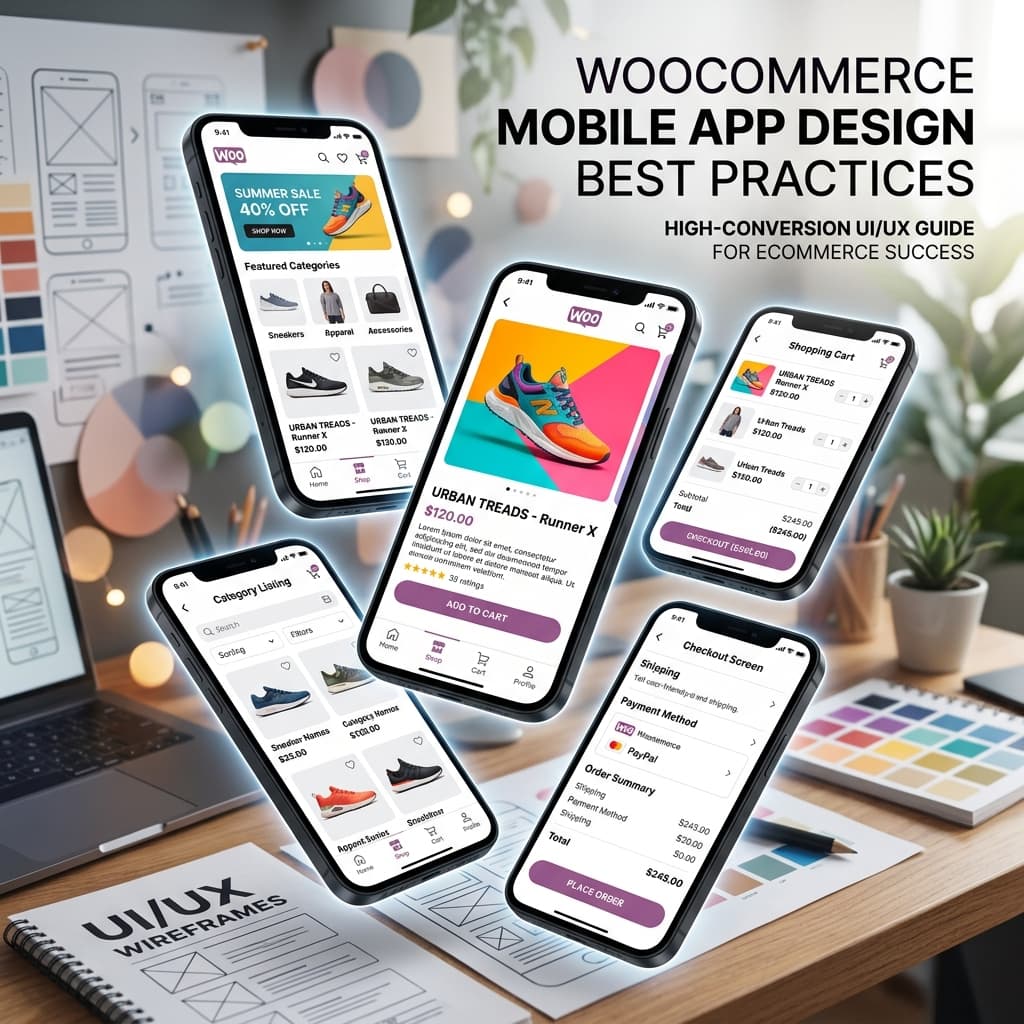
Why Mobile App Design Directly Impacts Revenue
Your WooCommerce mobile app's design is not just about aesthetics — it is the primary driver of conversion rate, average order value, and customer retention. Research shows that 94 percent of first impressions are design-related, and users form an opinion about your app within 50 milliseconds of opening it.
The difference between a well-designed ecommerce app and a poorly designed one can mean a two-to-five-times difference in conversion rate. Here are the design principles and UX patterns that top ecommerce apps use to maximize revenue.
Navigation Architecture
Bottom Tab Bar
The bottom tab bar is the backbone of your app's navigation. It should contain three to five items maximum. More than five creates visual clutter and makes tap targets too small.
Recommended tab structure for WooCommerce apps:
- Home — Featured products, promotions, and curated collections
- Categories or Shop — Full product catalog with browsing capability
- Cart — Shopping cart with item count badge
- Account — Profile, order history, wishlist, and settings
- Search (optional) — If your catalog has more than 100 products, a dedicated search tab improves discovery
Every product in your catalog should be reachable within two taps from any tab. If customers need more than three taps to find a product, your navigation is too complex.
Category Navigation
For stores with large catalogs, implement a hierarchical category structure:
- Top-level categories visible immediately on the Shop tab
- Subcategories accessible with a single tap
- Breadcrumb navigation so customers can easily move back up the hierarchy
- Category count badges showing how many products are in each category
Search
Search is critical for stores with more than 50 products. Implement these features:
- Prominent placement — Either as a dedicated tab or a persistent search bar at the top of the home screen
- Auto-suggestions — Show product names, categories, and brands as the user types
- Recent searches — Display the customer's previous search queries for quick re-access
- Search filters — Price range, category, rating, and availability filters after results display
- No results handling — When search returns nothing, show popular products or suggest alternative terms
Home Screen Layout
Your home screen is the most visited page in your app and should be designed to drive immediate action. Here is the optimal layout sequence:
1. Hero Banner (Top)
A full-width banner showcasing your highest-impact promotion. This is the first thing customers see when they open the app. Use it for:
- Seasonal sales and flash promotions
- New collection launches
- Free shipping thresholds
- App-exclusive offers
Make the banner tappable and link it to the relevant product page or collection. Rotate banners weekly to keep the home screen fresh.
2. Category Carousel
A horizontally scrollable row of category icons or images. This lets customers jump directly to the product type they want without navigating through menus. Include six to ten categories maximum.
3. Featured Products or Bestsellers
A grid or horizontally scrollable row of your top-performing products. These should be your highest-converting items — the products that have the best combination of demand and margin.
4. Promotional Section
A secondary banner or card promoting a specific deal, bundle, or limited-time offer. This provides a second conversion opportunity for customers who did not engage with the hero banner.
5. New Arrivals
The latest products added to your store. This gives returning customers a reason to scroll through the home screen on every visit.
6. Social Proof
Customer reviews, testimonials, or user-generated content. This builds trust and reduces purchase anxiety.
Product Listing Pages
Product listing pages (category pages, search results) are where browsing becomes buying. Optimize them carefully:
Grid Layout
Use a two-column grid as the default layout for product listings. Each product card should include:
- Product image — High quality, consistently sized, with white or neutral backgrounds
- Product name — Two lines maximum, truncated with ellipsis if longer
- Price — Prominently displayed with sale price in a contrasting color if applicable
- Rating — Star rating with review count if you have reviews
- Add to Cart button — A small cart icon or "Add" button directly on the card eliminates the need to navigate to the product detail page for known products
Quick Add to Cart
Allow customers to add products to their cart directly from the product grid without opening the full product page. This reduces friction significantly for repeat customers who already know what they want.
For products with variations like size or color, tapping "Quick Add" should show a compact variation selector rather than navigating to the full product page.
Infinite Scroll vs Load More
For product listings with more than 20 items, implement infinite scroll rather than pagination. Users scroll naturally on mobile and should not have to tap "next page" buttons. Show a subtle loading indicator at the bottom when more products are being fetched.
Product Detail Pages
The product detail page is where the purchase decision is made. Every element should support the conversion goal.
Image Gallery
- Show the primary product image large — at least 80 percent of the screen width
- Support pinch-to-zoom for detail viewing
- Include four to eight images showing the product from different angles, in use, and with size reference
- Support video if available — product videos increase conversion rates by 80 percent on average
- Image thumbnails below the main image for easy navigation
Product Information Hierarchy
Present information in order of importance:
- Product name and brand
- Price (with sale pricing clearly indicated)
- Rating and review count (tappable to jump to reviews section)
- Variation selectors (size, color, material — with clear visual indicators for selected option)
- Add to Cart and Buy Now buttons (sticky at the bottom of the screen)
- Product description — Collapsible or tabbed to avoid overwhelming the page
- Specifications and details — In a collapsible section
- Customer reviews — Full reviews with photos if available
- Related products — A horizontal scroll of complementary or similar items
Sticky Add to Cart
The Add to Cart button should remain visible at all times as the customer scrolls through the product page. Use a sticky footer bar that includes the price and Add to Cart button. This eliminates the need to scroll back to the top after reading reviews or checking specifications.
Checkout Flow
Checkout is where conversion either happens or does not. Every unnecessary step or form field reduces your conversion rate.
Minimize Steps
The ideal checkout flow has three screens maximum:
- Cart review — Items, quantities, and totals
- Shipping and payment — Address and payment method on a single screen
- Order confirmation — Summary and confirmation
Reduce Form Fields
Only ask for information you absolutely need. Use auto-fill, address lookup, and saved payment methods to minimize typing. Every field you remove increases conversion rate.
Guest Checkout
Always offer guest checkout. Requiring account creation before purchase is the number-one reason customers abandon checkout in apps. You can ask them to create an account after the purchase is complete.
Payment Methods
Support multiple payment methods including:
- Credit and debit cards with saved card support
- Apple Pay and Google Pay for one-tap purchases
- PayPal if your customer base uses it
- Any payment gateways your WooCommerce store already supports
Trust Signals
Display security badges, SSL indicators, and return policy links during checkout. These reduce purchase anxiety, especially for first-time customers.
Color and Typography
Color Strategy
- Use your brand's primary color for action elements like Add to Cart buttons and links
- Use a contrasting accent color for sale prices, badges, and urgency indicators
- Keep backgrounds neutral — white or very light gray — so products are the visual focus
- Ensure sufficient color contrast for accessibility (WCAG AA standard minimum)
Typography
- Use a maximum of two font families — one for headings and one for body text
- Product names should be 14 to 16 points
- Prices should be 16 to 18 points and bold
- Body text should be 14 points minimum for readability on small screens
- Line height of 1.4 to 1.6 for comfortable reading
Performance and Loading
Design decisions directly impact app performance:
- Lazy load images — Only load images that are currently visible on screen
- Image optimization — Serve appropriately sized images for mobile screens rather than full-resolution desktop images
- Skeleton screens — Show layout placeholders while content loads rather than blank screens or spinners
- Optimistic updates — When adding to cart, update the UI immediately and sync with the server in the background
Implementing These Practices
BrewmyApp's visual editor lets you implement all of these design principles without writing a single line of code. The editor includes:
- Drag-and-drop home screen layout builder
- Pre-built component templates following these best practices
- Real-time preview on your actual device
- Typography and color customization
- Product grid layout options
Start designing your app for free and see these principles in action.
Related reads:
Ready to Turn Your Store into a Mobile App?
Design and preview your app for free. No coding required.
Start Building for Free