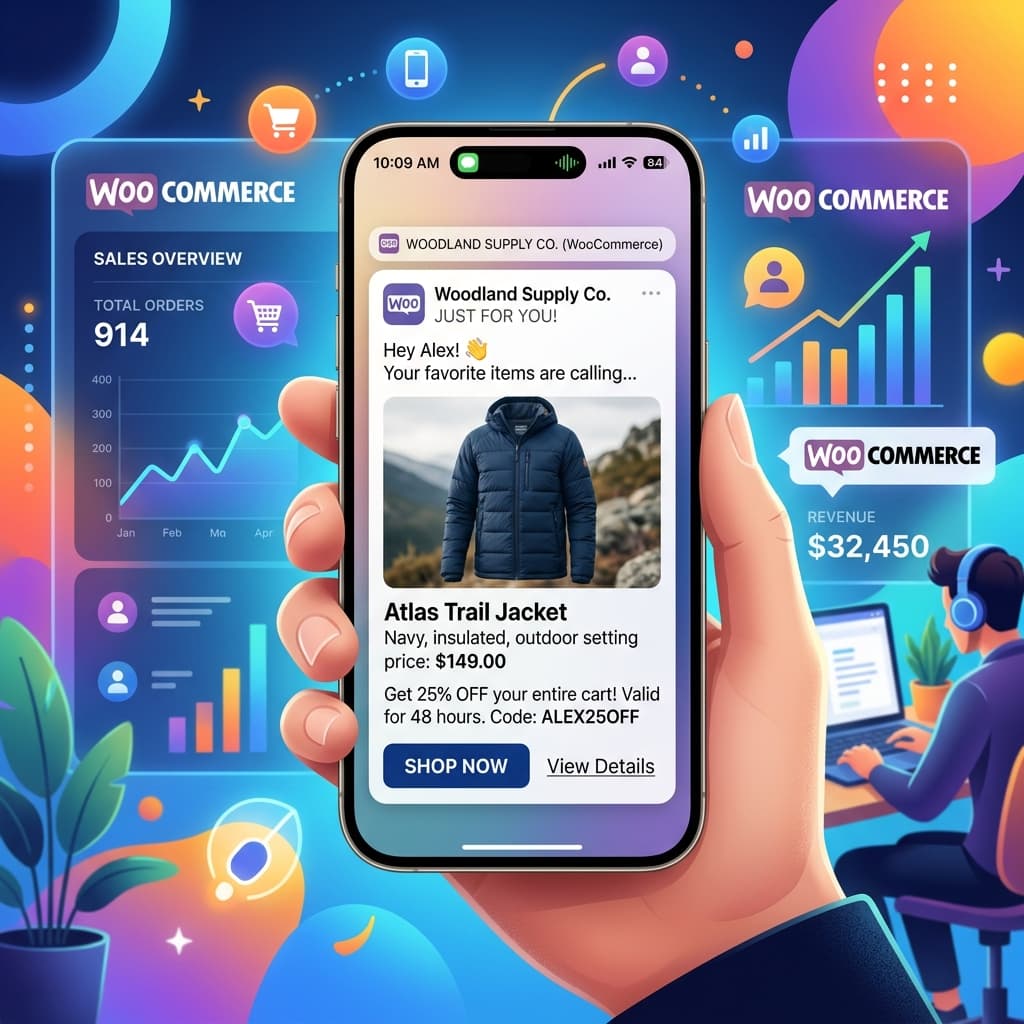
The Power of Behavior-Based Push Alerts
Broadcast notifications (sending the exact same notification to everyone) are useful for global sales, but the real revenue driver is behavioral personalization.
By triggering push notifications based on a customer's direct interactions with your WooCommerce store (like viewing a product, adding to cart, or abandoning checkout), you can deliver hyper-relevant messages that see massive click-through rates.
Here is a step-by-step tutorial on setting up personalized push notifications for your WooCommerce mobile app using BrewmyApp.
Step 1: Connect Your Store API
First, link your WooCommerce store with your mobile app builder dashboard:
- Generate Read/Write API keys from your WordPress dashboard under WooCommerce > Settings > Advanced > REST API.
- Input the keys into the BrewmyApp integration panel to sync products and order states.
Step 2: Configure Event Trackers
BrewmyApp's native container automatically tracks key shopping behaviors:
ProductViewedAddedToCartCheckoutInitiatedOrderCompleted
Step 3: Set Up Your Abandoned Cart Flow
Configure an automation trigger:
- Trigger event:
AddedToCart - Delay: 45 minutes
- Condition: No
OrderCompletedevent occurred during the delay. - Notification Text: "Hey {{name}}, you left some items behind! Don't miss out—finish checking out now."
Step 4: Configure Price Drop & Restock Alerts
Let users subscribe to product updates:
- Add a "Wishlist" or "Notify Me" button on your app's product details page.
- When you update the product price or inventory levels in WooCommerce, the system will automatically alert the subscribed users via push.
Using BrewmyApp simplifies these automation tasks, connecting your WooCommerce database to iOS and Android push protocols effortlessly.
Ready to Turn Your Store into a Mobile App?
Design and preview your app for free. No coding required.
Start Building for Free